


How I Take Better Book Notes With Obsidian
Obsidian is a powerful software that can help readers think deeper and…
Obsidian is a powerful software that can help readers think deeper and remember more about what they read. If you want an effective tool to help you take notes on your books, Obsidian is the perfect choice.
Table of Contents:
What is Obsidian?
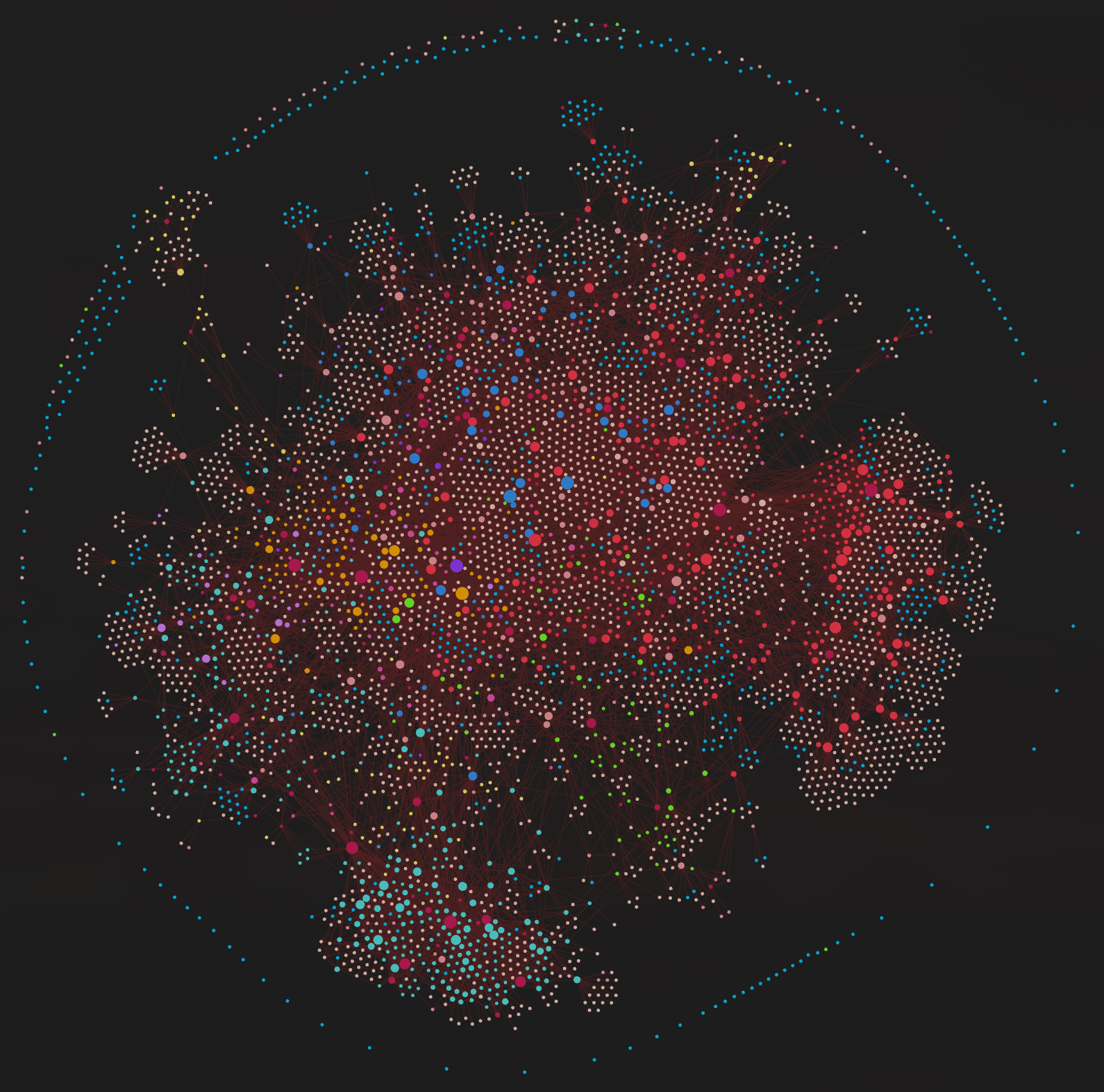
Obsidian is a free knowledge management program that turns your thoughts into a network of ideas. It visually maps the connections on its Graph View.
With Obsidian, every note is a Markdown file stored locally on your device. All your data is owned by you. Obsidian stores your notes in a “vault,” which is just a folder on your computer.
Obsidian is not like Notion, who stores your information on company servers. Obsidian believes your information is completely private and will never burn down your library of notes.
Obsidian is very customizable, with tons of user created themes to suit your desired aesthetic. They have everything from minimalist to maximalist.
Obsidian has plugins which are downloadable add-ons that provide a given function. Obsidian makes their own, but you can download Community Plugins too. Plugins built by users are often the most exciting and feature rich.
How I Use Obsidian
As a senior majoring in English Literature, I use Obsidian every day to level up my note-taking and connect meaningfully with the books I read.
For me, Obsidian is a note-taking software and a file management system. Think Google Drive on steroids. My vault is for personal writings, class notes, and storage. Most importantly, my vault is a library of book related notes.
In the pictures below, I use a customized Blue Topaz theme. However, I often switch to the ITS theme or Minimal Theme depending on my workflow.
I currently use 22 community plugins: Advanced Tables, Better Word Count, Buttons, Calendar, Chronos Timeline, Dataview, Dictionary, Editing Toolbar, Emoji Toolbar, Highlightr, Importer, Ink, Kanban, Kindle Highlights, Mind map, Minimal Theme Settings, MTG Card Links, Novel Word Count, Obsidian MTG, Style Settings, Tasks, Templater.
Want to know the best Obsidian community plugins for readers? Click here to see more below!
This is not a guide, but an overview of the way I use Obsidian to upgrade taking notes.
For more information on how to use Obsidian, check out Linking Your Thinking with Nick Milo on YouTube for easy tutorials. His videos helped me learn how to use such a complex software when I was first starting out —and I still have more to learn!
Tags
Tags are keywords or topics in connection with a hashtag (#) that allow you to quickly search your notes.
I have a number of tags that I attach to book related notes:
#Author
#book
#Chapter
#Character
#Classic
#Fantasy
#fiction
#memoir
#nonfiction
#Poem
#READ
#Romance
#sciencefiction
#self-help
#ShortStory
Tags allow me to easily sort my notes into categories I can search by. With tags, I can search by format, genre, author, etc.
Templates
With the Templater plugin, you can make reusable templates to automate your note-taking process.
I have two templates for my book related notes, a “Book Template” and an “Author Template.”
Templates allow me to easily set up note pages for books and their corresponding authors. I can add pictures, my rating, and the dates I started/completed the book. For authors, I can see their genre, era, and other works.
My Book Template
##### Information
Tags:
Author:
Rating:
Started on: [{{Date}}]
Finished on:
*INSERT PICTURE OF BOOK*
This is what it looks like in Obsidian:
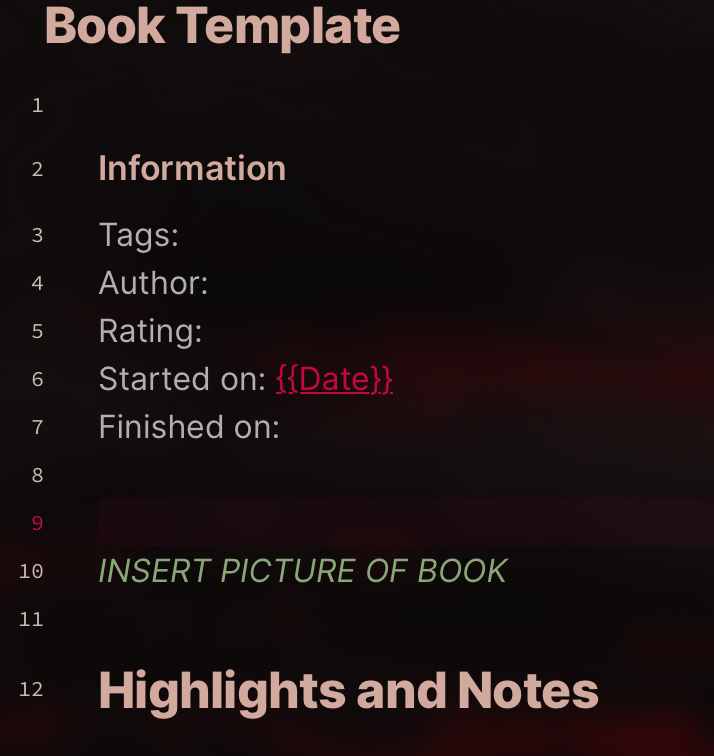
I manually attach a picture of the book’s cover, usually pulled off the internet.
Author Template
Tags: #Author
Date File Created [{{Date}}]
> [!infobox|Left]
> # Name
picture here!
> ###### **Life Years**
> | Birth | Death |
> | —- | —- |
> | YYYY | YYYY |
>
> ##### **General**
> | Type | Stat |
> | —- | —- |
> | Genre | Testing |
> | Profession | Testing |
> | Era | Testing |
### Works
–
### Wikipedia Page
# Highlights and Notes
This is what it looks like in Obsidian:
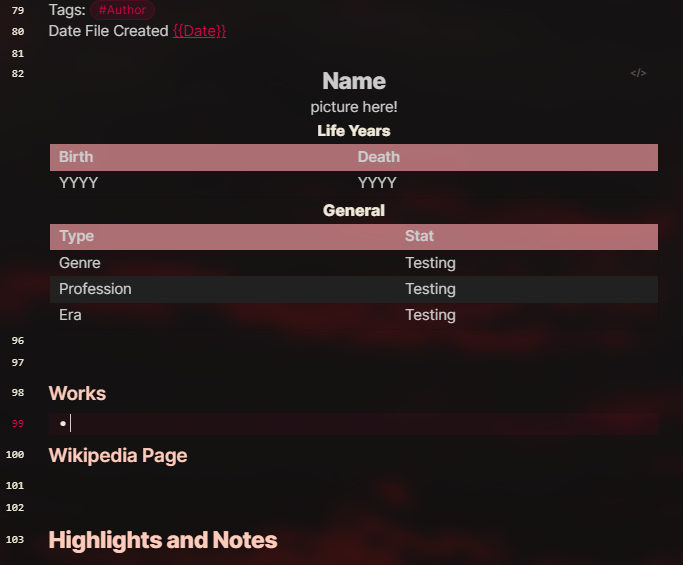
You will notice that I have a section for the author’s Wikipedia page. To embed a website, I use an iframe, or this block of text:
<iframe src=”INSERT YOUR LINK HERE” height=1500 width=1000>
I copy and paste the link to Wikipedia or Britannica over “INSERT YOUR LINK HERE.” Not all websites will allow you to embed their page in this manner.
The “[{{Date}}]” will automatically populate the date you created the file but can be manually changed.
Importing Kindle Highlights
When I read books with the Kindle app, I like to take notes and mark important passages. Obsidian’s Kindle Highlights plugin, I can export my notes and highlights for any given book into an Obsidian note page.
Kindle Highlights provides you the exact page number (of the kindle version) and a link to the excerpt in the kindle app.
You can even export highlights and notes from library books. Your notes will be saved in Obsidian after the loan expires. However, any links to the book in the kindle app will be broken because the book is no longer in your library.
Linking My Thinking
This is where the magic begins.
After I create my book and author pages, I import my Kindle notes and start linking ideas. Here is an example from Emma Southon’s “A Fatal Thing Happened on the Way to the Forum: Murder in Ancient Rome”:
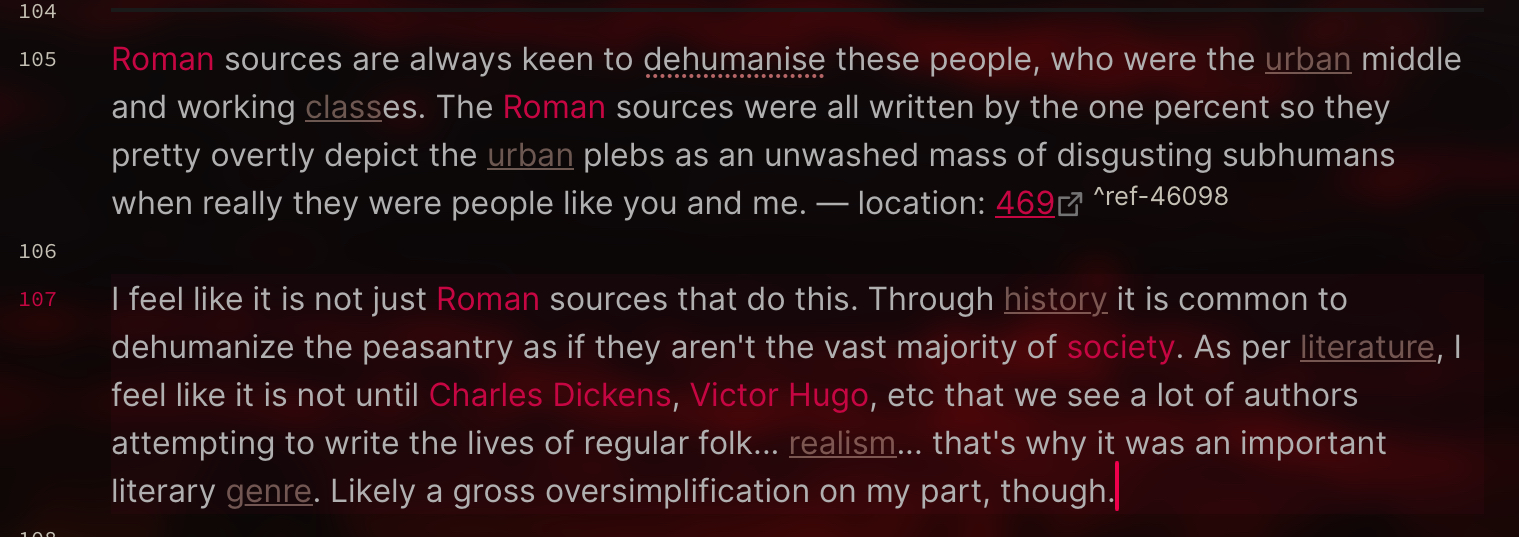
You will notice that pink links are existing notes and the brown have not been created yet. If you just downloaded Obsidian for the first time, it would be purple and gray. The pink link after “Location:” is an external link that sends you to your highlight on the Kindle App. Below the excerpt is my corresponding note.
This is what the 1st level connections to “A Fatal Thing Happened on the Way to the Forum” look like:
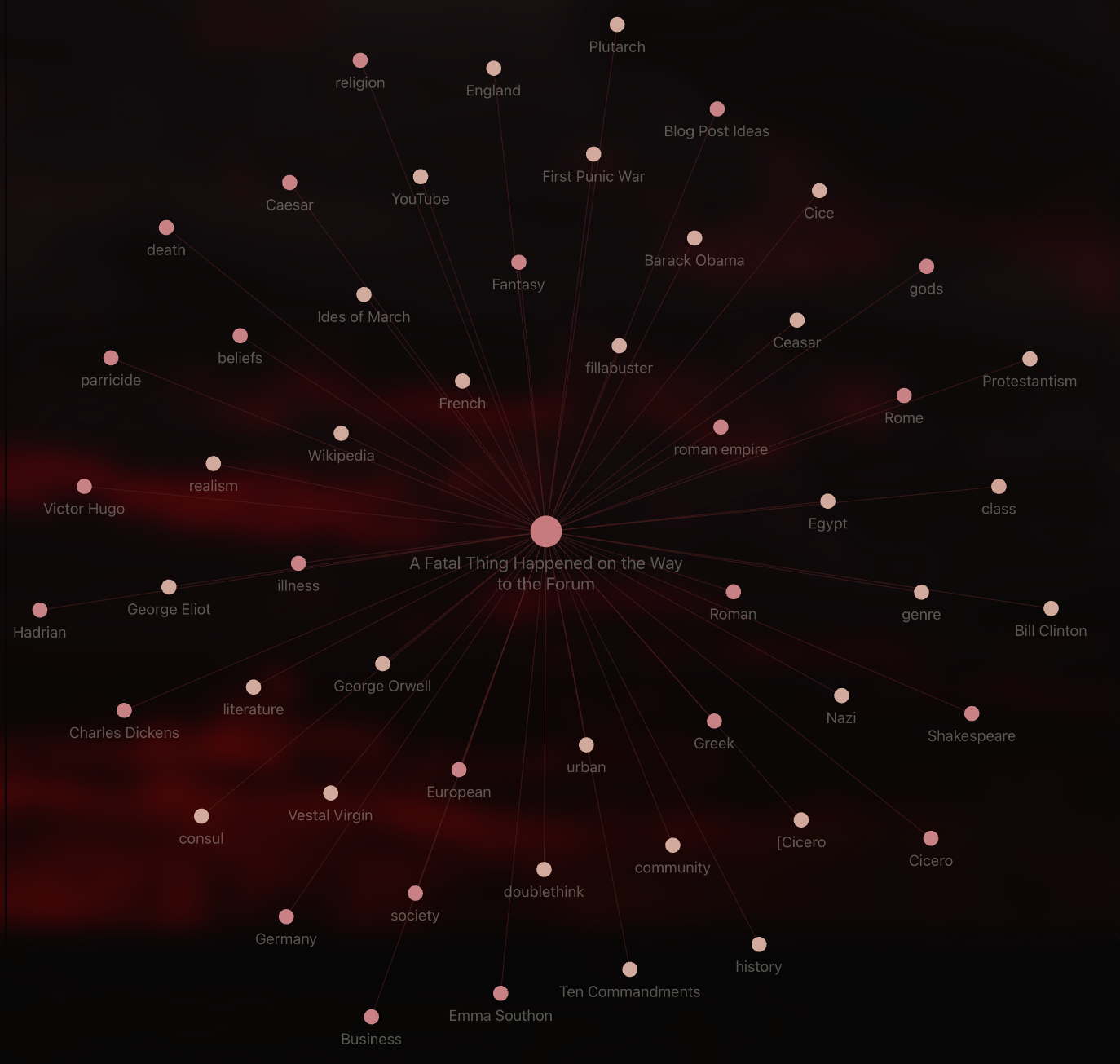
Dark pink nodes are created and light pink have not been created yet.
2nd Level Connections for “A Fatal Thing Happened on the Way to the Forum” look like this:
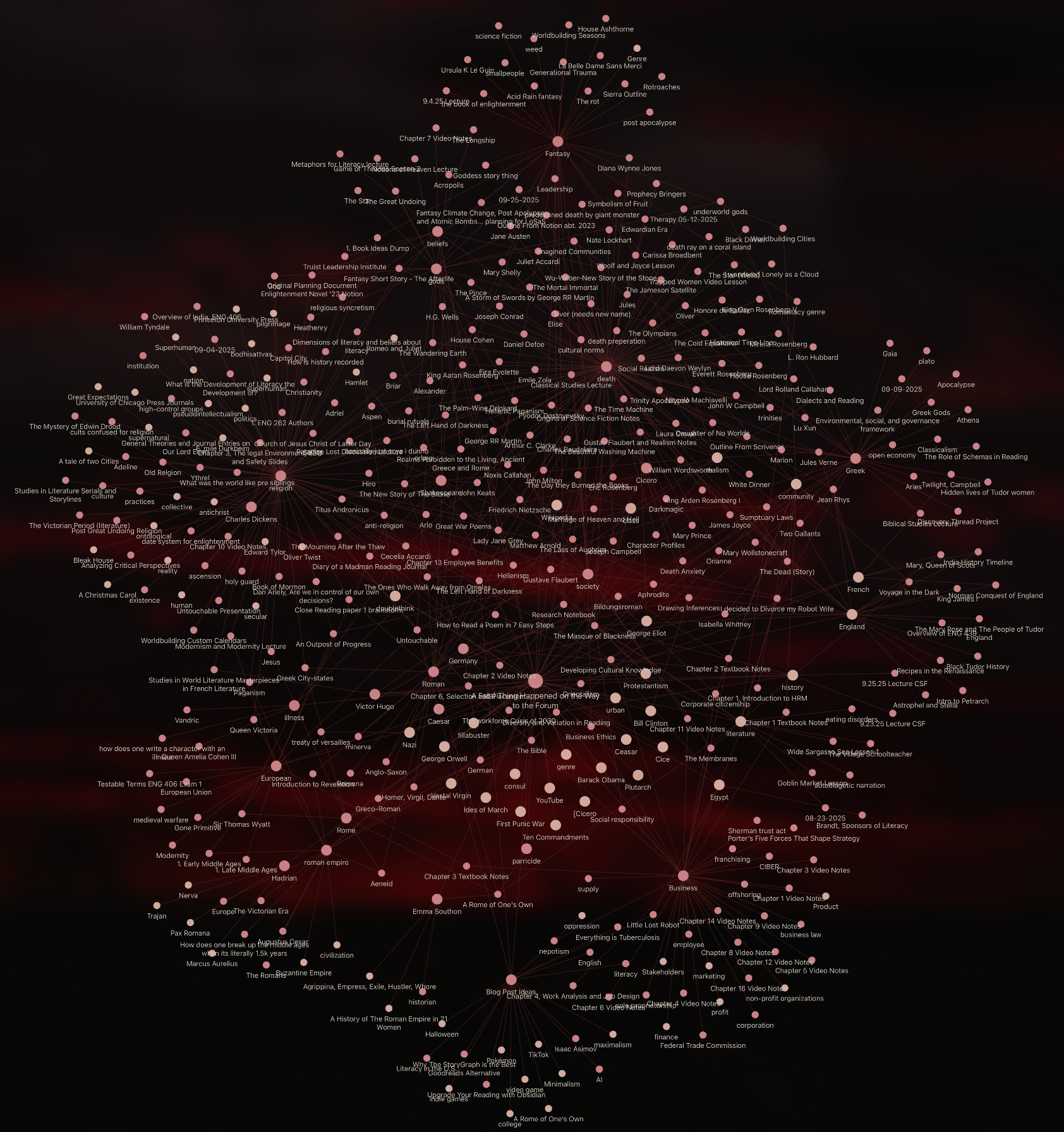
As you can see, Obsidian’s Graph View can get out of hand very quickly —but that is its strength.
Class Review
Obsidian is not only useful while reading, but in classes as well.
It is is the best note-taking app for readers in and out of the classroom. The software links my out-of-class readings with in-class discussions.
I am set up for success before my classes start because I use Obsidian to link my thoughts while reading. Obsidian has helped me be more attentive to important themes and narrative arcs for class discussions.
During a lecture, Obsidian’s linking feature allows me to quickly connect discussion topics. I can see how my previous notes connect to new ideas in real time.
When it is time to review my notes, I can study related ideas and topics with the Graph View. I do not have to study in a linear fashion and can jump between concepts. If that is not your forte, Obsidian also allows for linear note review and word processing similar to Microsoft Word or Google Docs.
The Best Plugins for Readers
Obsidian has a boatload of features without plugins, but utilizing them makes it one of the most versatile note-taking software out there.
These are my top 5 favorite Obsidian plugins for readers. All of these plugins can be found on Obsidian’s plugin store.
- Templater
- Allows you to automate manual tasks with reusable templates.
- Lets you to create templates for books, trackers, author pages, and more!
- Kindle Highlights
- Lets you sync highlights and notes from your Kindle app to Obsidian.
- Sync from a .txt file or directly from Amazon’s Kindle Reader.
- Lets you sync highlights and notes from your Kindle app to Obsidian.
- Better Word Count
- An improvement upon Obsidian’s built-in plugin that can count selected text rather than the entire document. Turn off the built-in plugin because Better Word count replaces it.
- Obsidian Dictionary
- Helps you look up unfamiliar words by adding a dictionary to Obsidian.
- Has support for multiple languages.
- Highlightr
- A colorful, yet minimalist highlighting.
- Highlight important concepts and themes on your book notes with Highlightr.
- Color code with highlights!
Books Connected, Thoughts Collected
Every time you read a book, it leaves behind fragments of unconnected thoughts and feelings. Obsidian helps you gather those pieces and connect them into a lasting network of ideas.
For readers, Obsidian is more than a simple note-taking app, it is a growing library of knowledge you curate.
Whether you are reading for yourself or for a class, Obsidian helps you see emerging patterns: recurring ideas, shared themes, and familiar references across genres and eras.
Obsidian’s plugins are versatile and highly customizable to any reader’s needs. They can help you automate manual tasks, sync kindle highlights, look up unfamiliar words, highlight text in fun colors, and so much more!
With Obsidian, your books are connected and thoughts collected. Download Obsidian for free today to start linking your thinking!
Image Credit: Kaitlyn M Parker





One Comment